

Tips, deposits and donations
Posless takes tips, cup deposits and donations without mixing them with sales: they stay out of the takings, but the expected cash counts them.
On this page (7)
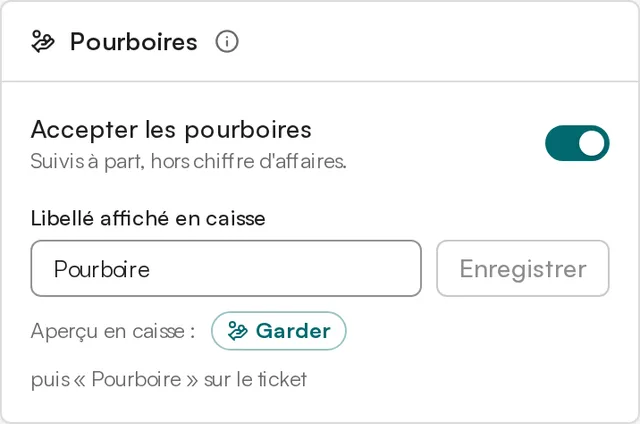
Accept tips
For: Manager, administrator
- Open the event page, then Event settings, Tips card.
- Turn on Accept tips.
- If needed, change the name shown at the till and on the receipt, then Save.
Good to know: When the event also accepts donations, tips cannot be called Donation: that word is kept for the donation button.
Take a tip
The customer leaves the change: enter the amount received (€10 for €7), then tap Keep instead of Confirm. The €3 becomes a tip, there is nothing to give back.
The customer adds a tip by card: tap Card: the payment screen opens at the exact amount. Enter the total amount charged (€9 for €7), then tap Keep. Confirm as is if there is no tip.
A mistake before confirming? The cross next to the tip cancels it.
Good to know: A cash tip handed to the volunteer is recorded with a pay-out, so the drawer balances.
Charge a deposit on cups
For: Manager, administrator
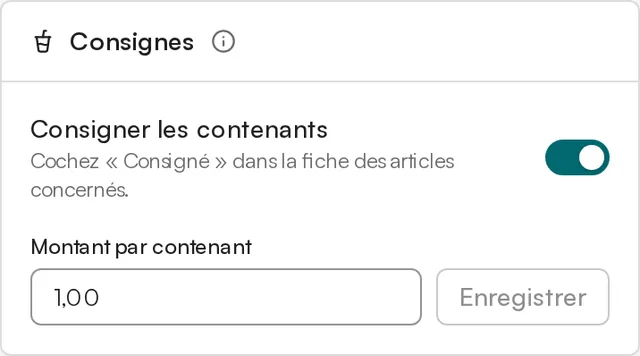
- On the event page, open Event settings, Deposits card. Turn on Charge a container deposit and adjust the amount per container (€1 suggested).
- In the catalogue, open each drink served in a deposit cup and tick Deposit.
Good to know: All deposit items have the same amount. The catalogue’s With deposit button shows only them, so you can check.
Take and refund a deposit
The deposit is added to the cart by itself for each deposit drink (Deposit line, included in the total).
The customer brings a cup back while buying another drink: tap Return, just above the total, and the deposit is deducted straight away. For several cups, tap the button again, now Return ×1: a counter opens to add or remove cups. If the cups pay for the whole drink, tap Confirm without payment.
The customer brings cups back without buying anything: empty cart, count them with the same Return button. Then tap Give back in cash and hand over the amount shown.
Good to know: The Summary counts cups handed out, returned and kept, and the amount kept.
Accept donations
For: Manager, administrator
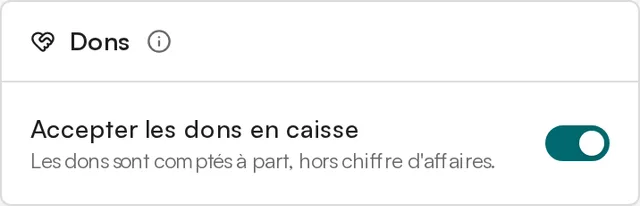
On the event page, open Event settings, Donations card, then turn on Accept donations at the till. A Donation button appears in the cart of every till.
For a raffle or a second-hand object, use an open-price item instead: its amount counts in the takings.
Good to know: Posless does not issue tax receipts for donations.
Take a donation
- Tap Donation, just above the total, with or without a purchase.
- Enter the amount, then tap Confirm: it is added to the total to pay.
- Take payment as usual, in cash, by card or both.
Good to know: The donation amount then shows in the bill details, above the total: tap Donation to correct it, or tap Remove the donation in the same window. It appears separately on the receipt.
Where to find them in the accounts
For: Treasurer, administrator
Tips, deposits and donations never count in the takings or the target. They are tracked separately in the history, the Summary, Reports, the Cash book and the exports.
The expected cash at the count does include those received in cash: they really are in the drawer.