

Accounts and summary
Posless works out what each till should hold, compares it with the count and produces a closing Summary with the exports for the treasurer.
On this page (11)
View and correct a sale
In the till menu (☰), History lists the event’s sales. Everyone can view it.
A mistake? In the history, Current session tab, the last sale of the open till session can be corrected or cancelled from the till that made it, by any team member or volunteer access.
A manager can reserve these corrections for managers and administrators, in Event settings, Corrections at the till card, on the event page. The receipt of the last sale then shows “On this event, only managers can correct a sale.” instead of the Edit this transaction button for a cashier, a till access or a volunteer access. A correction made offline just before this change is refused when sent, and the team is told by a notification.
An older sale is cancelled in the management area, in the event’s Transactions tab, by a manager or an administrator.
Good to know: A sale whose order the kitchen has already taken can no longer be edited: cancel it and ring it up again.
Follow sales live
For: Manager, treasurer, administrator
The management area’s dashboard starts with the To do card: out of stock, low stock, waiting orders, tills to count, grouped under each event’s name. Each line opens the screen that fixes the problem. Beyond five events, the least urgent wait behind the See the other N button.
On the event page, the Live tab shows takings, stock, till sessions, orders and transactions during service.
Good to know: A sale made offline appears when its till gets signal again.
Choose the till mode
For: Manager, administrator
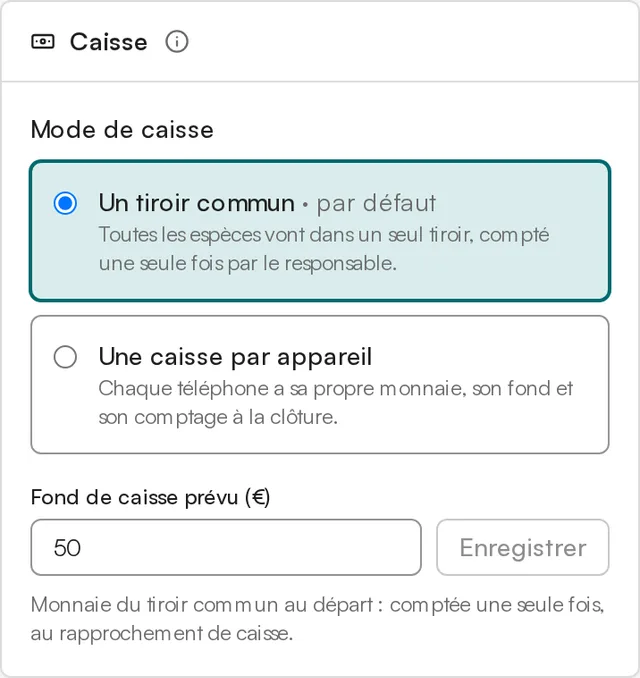
The mode is chosen in Event settings, Till card, on the event page. With one shared drawer, all the cash goes in a single drawer, counted at least once at the end in the Cash book. With one till per device, each device (phone or tablet) has its own change, float and count.
With a shared drawer, turn on Count the drawer at the end of the last shift to count the drawer every evening: the float left in the drawer carries over to the next day. The details are in Count the shared drawer.
Also enter the planned float: 0 if there is no change to start with.
Good to know: The mode locks at the event’s first till session.
Count the shared drawer
For: Treasurer, administrator
When an event sells over several days, count the drawer every evening: you see a difference on the day it happens, not at closing.
For the till to offer it, a manager turns on Count the drawer at the end of the last shift in Settings, Till card, on the event page. This setting stays off until you turn it on, and the Cash book offers Offer the count on the till when the event has sold over several days without a count.
With this setting, tap End shift. When no till is open any more, the till offers Count the drawer. Tap Later to close the window without saving anything: the treasurer or an administrator will then count the drawer in the Cash book of the management area, and the till does not offer it again.
Count the notes and coins, then enter the total on the keypad: the expected amount is not shown beforehand. Then enter the float left in the drawer, which is the change that stays for the next shift, and the rest comes out of the drawer.
The till gives the result in one sentence, for example “2.00 € is missing” or “The count is right”. Add a note if you know why there is a difference, then tap Save the count.
A count made by a cashier or a volunteer device carries the To review badge in the Cash book until the treasurer or a manager taps Mark as reviewed. A count made by a manager, the treasurer or an administrator is reviewed automatically. Without a network, it is sent when the network returns.
To count in the management area, follow these steps. The next day, the expected amount starts again from the float left the day before.
- Wait until every till has ended its shift.
- The Cash book opens on the event whose till needs counting, otherwise on the current event. The Till reconciliation card shows the expected amount, which is what the drawer should hold: the planned float plus the cash from every till.
- Enter the total counted in the drawer: the difference is worked out once. Explain it if there is one.
- The count can be done the next day, even after closing, and Correct saves a new count that replaces the previous one.
- A sale was entered with the wrong payment method? Before closing, tap Correct a payment method, choose the sale, then the actual method and a reason: the expected amount and the difference are recalculated. If the customer paid with several cards, tap Several cards and enter the amount of each card: the last one takes the rest.
Good to know: With one till per device, a session closed without a count shows To count in the Cash book: Enter the count saves the amount counted.
Close the event
For: Manager, administrator
Once the last sale is made and the tills are counted, tap Close the event on its page and confirm. Closing freezes the figures, locks the catalogue and switches off access codes and kitchen screens.
After the end date, a banner, the dashboard and emails remind you to close: the next day, a week later, then a month later if the event has sales. On the Free plan, an event that has ended but is not closed keeps the only event slot: when you create another one, the window that opens offers to close it.
The Before closing banner lists what can no longer be settled once the event is closed. These are till sessions still open, card payments with no answer from the payment terminal and orders waiting in the kitchen. Close closes every open session without closing the event, and Check opens the card payments to handle.
To correct the payment method of a sale, reconcile the till before closing: once the event is closed, it can no longer be corrected. Counting the till is still possible afterwards, from the Summary.
Good to know: Closing is final. Sales still going on? Extend the end date in the Event settings instead.
Read the Summary
For: Manager, treasurer, administrator
After closing, the event page opens on the Summary: takings, sales, tills, stock, cash and card split, volunteer and item leaderboards, and sales by day if the event lasted several days.
Under the cash and card split, the Card total to match with the card reader line adds up the sales, donations, tips and deposits paid by card: compare it as it is with your card reader’s history. If they differ, See card payments opens their list, with the time of each one. The Reports page shows the same total under Payment methods, for one event, several or all of them, and the net deposits in their own tile.
The To complete the summary card lists what is left to enter, with a button that leads to the right field: count the till and the remaining stock, enter purchase prices, notes and expenses. For stock, Count opens the count sheet, and Nothing to correct ticks the step. The notes for the next edition hand over to the next team.
The count sheet lists the tracked stocks with the expected quantity: enter what is left, or tap Matches if it is what was expected. The discrepancy shows at once. Save count saves every filled-in line at once, and each counted item keeps its Counted tick: several people can count (bar and storeroom) and pick up later. A discrepancy corrects the stock, which becomes the starting stock of the next edition. A keg or a carton is counted in full containers plus the opened one, with Count.
A few days after closing, administrators and managers receive this summary by email, with your notes and a button to prepare the next event that copies the catalogue and prices. To stop receiving them, open your account menu, then My profile, and turn off Tips by email in the Emails card.
To find it later, the Latest summary card on the dashboard opens the summary of the last closed event for 30 days, and the bell says it is ready as soon as the event closes.
Work out the margin and net result
From EssentialFor: Manager, treasurer, administrator
Enter the items’ purchase price (item form, or Complete on the Summary) and the event’s expenses: hire, music licence, equipment. Expenses are entered in Settings, Budget section, Event expenses card, or on the Summary after closing. The Summary then shows the net result: takings minus the cost of items sold and the expenses.
The purchase price is entered per unit. For a pack of cans or a carton, Per pack, next to the field, asks for the pack price and the number of units, and works out the unit price. The button is also in the item form and the shared stock: by the kilo, it asks for the pack weight, and for a stock in kegs, the number of kegs.
Only what is sold counts in the cost: unsold items stay in stock. Enter the real price of an item taken from your reserve, even if it was paid for in an earlier purchase, and 0 for what is donated (pancake batter made by members). For a Nutella pancake, count only its share of the jar: €6 for a jar that makes 30 pancakes, €0.20 per pancake.
Plates, napkins or cups tracked in a supply shared stock: their purchase price is entered in the stock, and only those used count in the cost of items. The rest (kitchen roll, bin bags, supplies without a stock) goes in the expenses, Consumables category; do not enter the same purchase twice. With no costs at all, No expenses ticks the step.
Good to know: Do not add the purchase of goods to the expenses: it is already counted through the items’ purchase price.
Export for the accounts
For: Treasurer, administrator
In Reports, Full summary (CSV) downloads the full summary. PDF report downloads the report to print (Essential plan). Other exports offers the transaction log and the item breakdown. On the Summary of a closed event, PDF report is at the bottom of the page, and the CSV files are in the summary details. The files open in columns in Excel.
The Reports page opens on the event in progress, or on the latest one when none is in progress. The Export: line, above the buttons, says what is exported: one event or all events, and the period and payment method chosen. The files also state it at the top. When an export covers all events or several, a window first asks what it should contain, with the number of sales and the takings of each event: confirm, or choose a single event. With no event chosen, the full summary and the PDF report add one line per event, whose total gives back the figures of the file; cash count, result and stock stay in each event’s own report.
For a season, a weekend or the days of a festival held as several events, without the rest of the year: tap Several events, under the event choice, tick at least two events, then tap Show. Figures, log, losses and exports count only them, and the Export: line names them. The Tills and By hour sections are read for one event or for all. Tap the names shown to change your choice, or the cross to go back to all events.
For one day’s figures, choose the event on the Reports page, then Today or Yesterday under the dates: the screen and the exports cover that day.
On an event lasting several days (seasonal bar, open-air café, festival), the event page’s By day table, live as on the Summary, gives one line per sales day. Tap a day: the Reports page opens on that day, ready to print or export.
The laid-out PDF report downloads from the same place. Its first page gives the event’s date and times, and states that the figures come from the sales recorded at the till. Over several days, the full summary and the PDF report also give one line per sales day, with the total. Its last page, Prices charged, keeps the price of each item sold and the discount of each meal deal, taken from the sales: a price changed during the event gives one line per price, with the times it was rung up. An item at a free price, by weight or by length has no single price, so the page counts its sales.
Good to know: The PDF report needs the Essential plan, and choosing several events the Complete plan. Exports need a connection. Exported files are in French. For accounting software, choose the semicolon as separator and the comma for decimals when importing: that is the format of Posless files.
Run a season
For: Manager, treasurer, administrator
A club bar, an open-air café, a common room or a festival lasting several days fits in a single event: one catalogue, one stock and one Summary for the whole period, with one line per sales day.
- Create a single event for the season and set its end date to the last planned day: closing reminders only arrive after it.
- Before the first sale, keep the One shared drawer till mode and turn on Count the drawer at the end of the last shift in Settings, Till card. The drawer is then counted every evening, and the float left in the drawer carries over to the next day (see Count the shared drawer).
- Every evening, close the till with End shift: the next session starts the following day. When the last till has ended its shift, tap Count the drawer and enter the counted total.
- For one day’s recap, tap that day in the event page’s By day table. The Reports page opens on that day, with the takings and payments, ready to print or export. Each evening’s counts stay in the Cash book.
- Only close the event at the end of the season.
Good to know: A session left open for several days mixes those days into a single count: the till flags it the next morning, before the first sale. A season quickly goes beyond the Free plan’s limit (4 sales days in the last 30 days): it calls for the Essential plan.
Track the year’s income
For: Treasurer, administrator
This card applies French tax rules. Above €81,051 of commercial income in the year (2026 threshold), a French association owes corporation tax. It only becomes liable for VAT above €85,000 of sales the previous year, or €93,500 in the year. The Income for the year card adds up the calendar year’s sales taken with Posless, excluding donations, deposits and tips. It compares them with the €81,051 threshold.
Once that threshold is passed, your sales count for VAT from the 1st of the following month, or from 1 January if it was passed the previous year. The card then adds them up under VAT (small business exemption) and compares them with the €93,500 threshold.
- Open the management area’s Dashboard: the Income for the year card is at the bottom of the page.
- Read the total counted against the exemption threshold and what is left before it. The card warns you as the threshold gets close, then if it is passed.
- Tap Breakdown by event: each event of the year appears with its income.
- Turn on Exempt fundraiser for your fundraising events (six a year at most): their amount is struck through and taken out of the count.
- After the threshold is passed, read the VAT (small business exemption) line under the bar: the total counted since the 1st of the month concerned and what is left before €93,500. The card warns you as this threshold gets close, then if it is passed: the association must then use a certified till.
Good to know: This counter helps you keep track, it is not a tax calculation: only commercial income counts. Have it confirmed by your accountant.
Compare two editions
CompleteFor: Manager, treasurer, administrator
On the Summary, Compare with picks another closed event and shows the differences. The Reports page compares up to four events side by side.